
 Spotless
Storage by type: see which kind of file fills your Mac
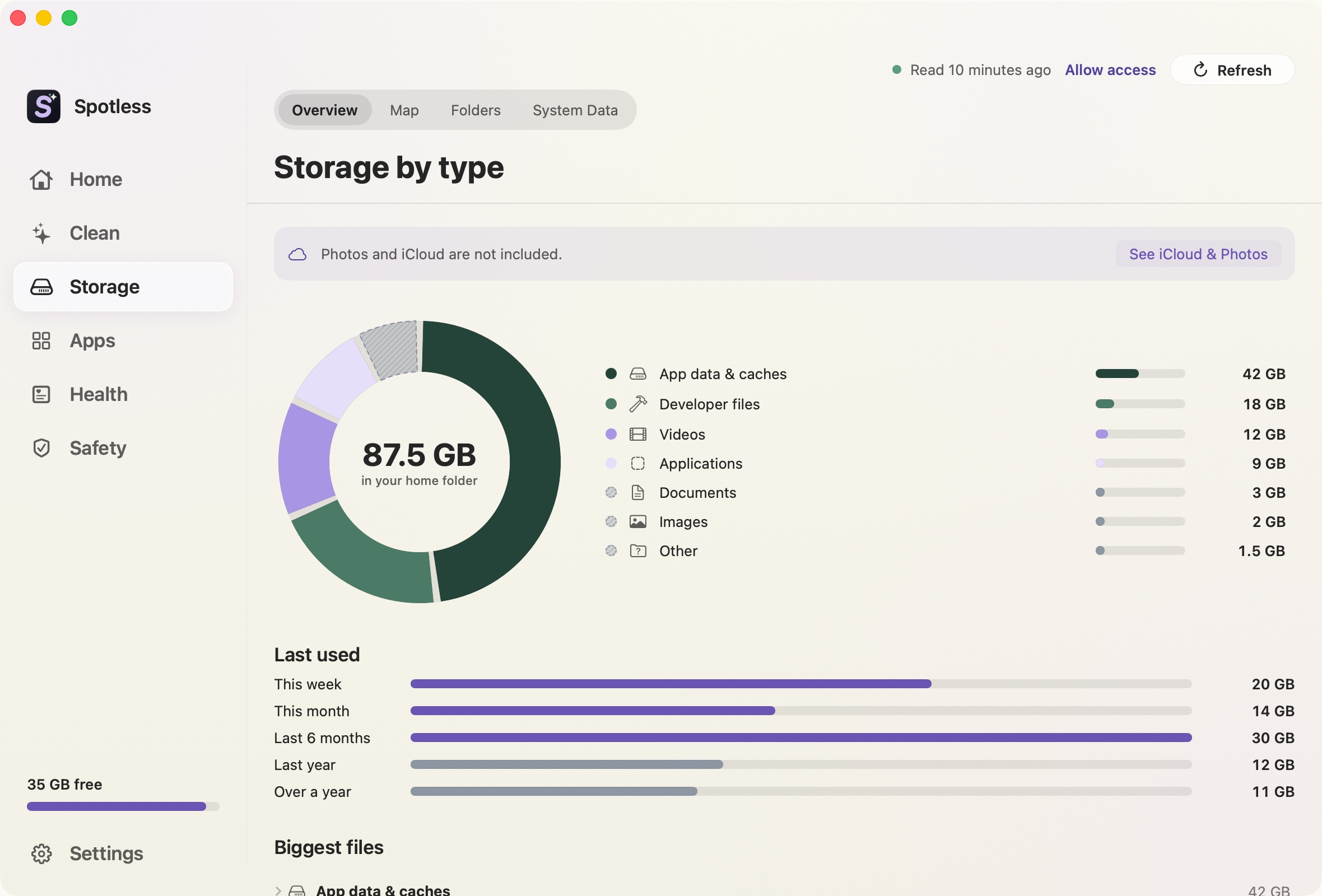
Settings, then Storage, gives Apple's categories. Storage by type counts the files in your home folder by what they are and by when you last used them. It answers a narrower question: which kind of thing is taking the room.
What it shows
A ring with the total for your home folder and a legend for each type. Types are Images, Videos, Audio, Documents, Archives, Installers and disk images, Applications, Developer files, App data and caches, and Other. A "Last used" panel splits the size into this week, this month, the last 6 months, the last year and over a year. Under "Biggest files", each type opens to its largest files, up to 100 of them, files over about 200 KB only.
Type comes from the file's extension and location. A file in ~/Library counts as app data whatever it is. Code files and folders such as node_modules count as developer files. A .json data file therefore lands under developer files too. Treat the split as a guide.
Photos and iCloud are not in it
By default the page says "Photos and iCloud are not included". The Photos library is locked permanently and iCloud Drive and cloud folders are locked and skipped by the scan. If you allow it in Settings, their sizes appear as rows, and opening them says they are locked. See locked areas. Those rows measure only what is on this Mac, not what is online.
Acting on it
Tick files in a type's list and the action bar offers the review sheet. Nothing is ticked beforehand, and the review sheet shows Trash or permanent before anything moves. For a map by folder instead, use the space map. The scan runs from Home, and the page asks you to start one if none has run.
It only covers your home folder. It does not count the system, other users, or snapshots, so the total will not match the Storage figure in System Settings. For that gap, read System Data.
The manual way
Finder can sort by kind: in List view, View, then Show View Options, then group by Kind, and "Calculate all sizes". Terminal, read-only:
du -sh ~/Library ~/Movies ~/Documents ~/Downloads 2>/dev/null
find ~ -type f -size +500M -not -path "$HOME/Library/*" 2>/dev/null
mdfind -onlyin ~ 'kMDItemFSSize > 1000000000'
du prints one total per folder. find lists large files outside Library. mdfind uses Spotlight, so it is fast but only as complete as the index. Folders under protected locations may report "Operation not permitted" until Terminal has Full Disk Access.
Keep going
- How to free up space on your Mac: Where Mac storage usually goes, in the order worth checking, with the exact Terminal and Finder commands to measure each place before you delete.
- How to find large files on your Mac: Find the biggest files on a Mac with Finder, find, du and Spotlight, and why the sizes disagree for sparse files, packages, clones and iCloud placeholders.
- How to find duplicate files on your Mac: Find duplicate files on a Mac by content, not name. Terminal commands that hash files with SHA-256, why name and size matching fails, and what is safe.
- Find duplicate files and keep one copy: Spotless finds byte-identical files of 1 MB or more in your usual folders, suggests which copy to keep, and ticks nothing until you do.