
 Spotless
Find duplicate files and keep one copy
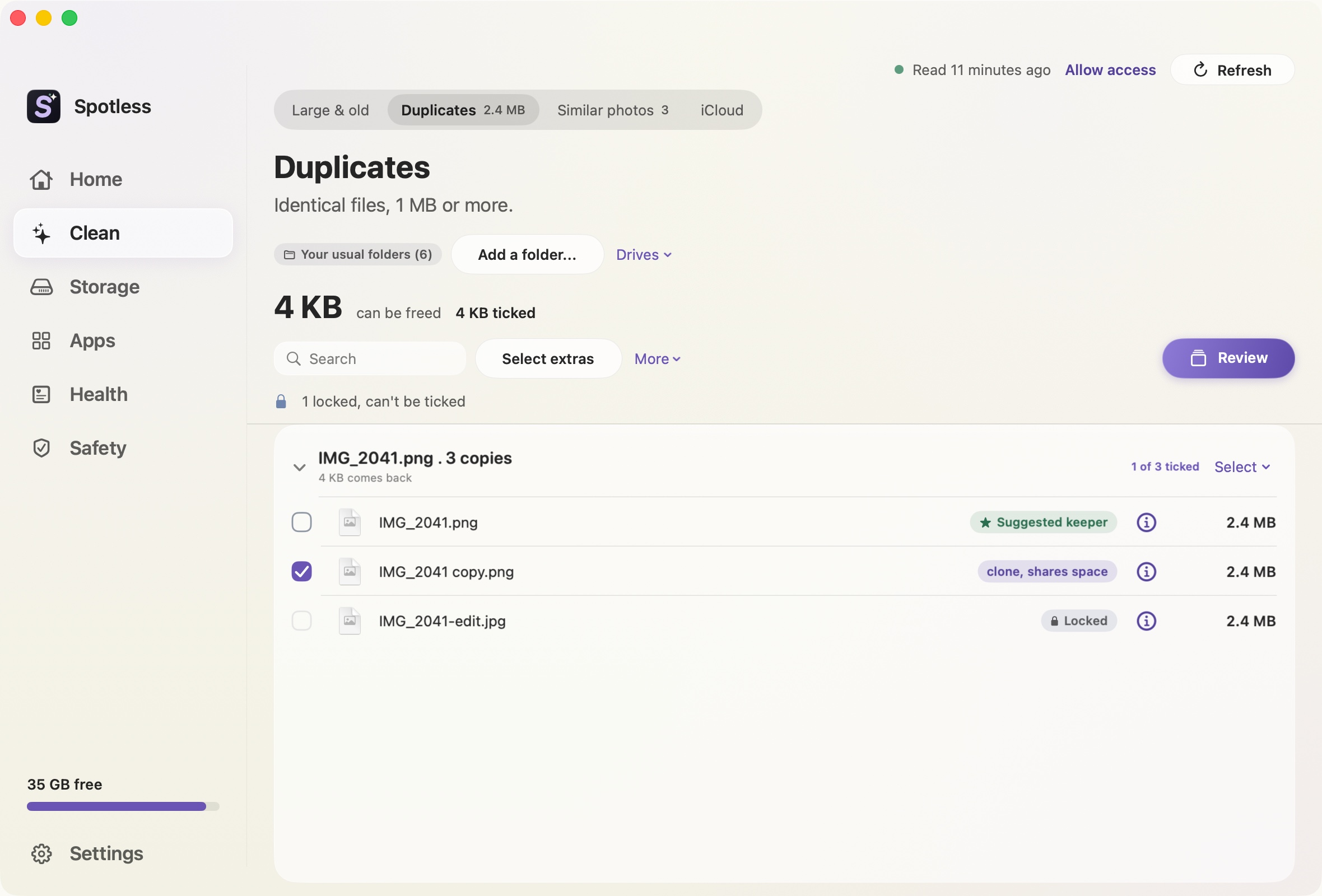
The same 800 MB video sits in Downloads and in Movies. The same installer sits in three folders. Duplicates finds files whose contents are identical, groups them, and suggests which copy to keep. Nothing is ticked until you tick it.
When to use it
Use it on folders you fill yourself: Downloads, Desktop, Movies. By default it searches six folders in your home folder: Desktop, Documents, Downloads, Pictures, Movies and Music. You can add up to 12 folders, or drop one on the page. A network drive asks you to confirm first, because every file is read over the network.
How it decides
Files are grouped by size first. Spotless hashes samples from the start, the end and, for large files, the middle. Only files that match are read all the way through and hashed with SHA-256. A group exists only when the whole-file hashes match. Two names for one file (hard links) count as one file.
The free-space figure is honest about clones. On APFS, a clone or hard link shares disk blocks with the original, so deleting it frees little or nothing. The page counts only what you would really get back, which is why the screenshot says 4 KB for three 2.4 MB copies.
The suggested keeper is chosen in this order: a protected copy, then a copy outside Downloads, Desktop, temporary folders, the Trash and Caches, then a name without a copy mark such as "copy" or "(1)", then the older file, then the shorter path. You can override it. You cannot tick the last copy of a file.
What it will not touch
It does not search your Photos library, which is locked by default. Photos has its own Duplicates album. It also refuses iCloud Drive and other cloud folders, Time Machine backups, app packages, your Library folder, the Trash and system folders. Files stored only online are never downloaded to be compared. Anything under 1 MB is ignored.
It matches identical bytes only. A resized copy, a re-saved JPEG or an edited photo is a different file and will not appear.
Files in protected places show as locked and cannot be ticked. What you remove goes to the Trash, and space returns when you empty it.
The manual way
Finder has no duplicate finder. You can sort a folder by Size in list view and look for equal sizes, which finds suspects but proves nothing. In Terminal, this hashes every file over 1 MB in a folder and prints any hash that appears more than once:
find ~/Downloads -type f -size +1000k -exec shasum -a 256 {} + \
  | awk '{c[$1]++; l[$1]=l[$1] "\n" $0} END{for(h in c) if(c[h]>1) print l[h]}'
It reads every file in full, so it is slow on large folders. It lists hard links as separate copies, and it will not warn you before you delete the last one. Check a pair with cmp -s a b, then delete in Finder so the file goes to the Trash. For a handful of obvious duplicates, this is enough.
Keep going
- How to find duplicate files on your Mac: Find duplicate files on a Mac by content, not name. Terminal commands that hash files with SHA-256, why name and size matching fails, and what is safe.
- Storage by type: see which kind of file fills your Mac: Spotless groups the files in your home folder by type and age, from app data and developer files to videos, with the biggest files in each group.
- How a Spotless clean works: Scan, look, choose, review, Trash.
- Pricing: Every feature for $9, once.