
 Spotless
See what is filling your Mac with the space map
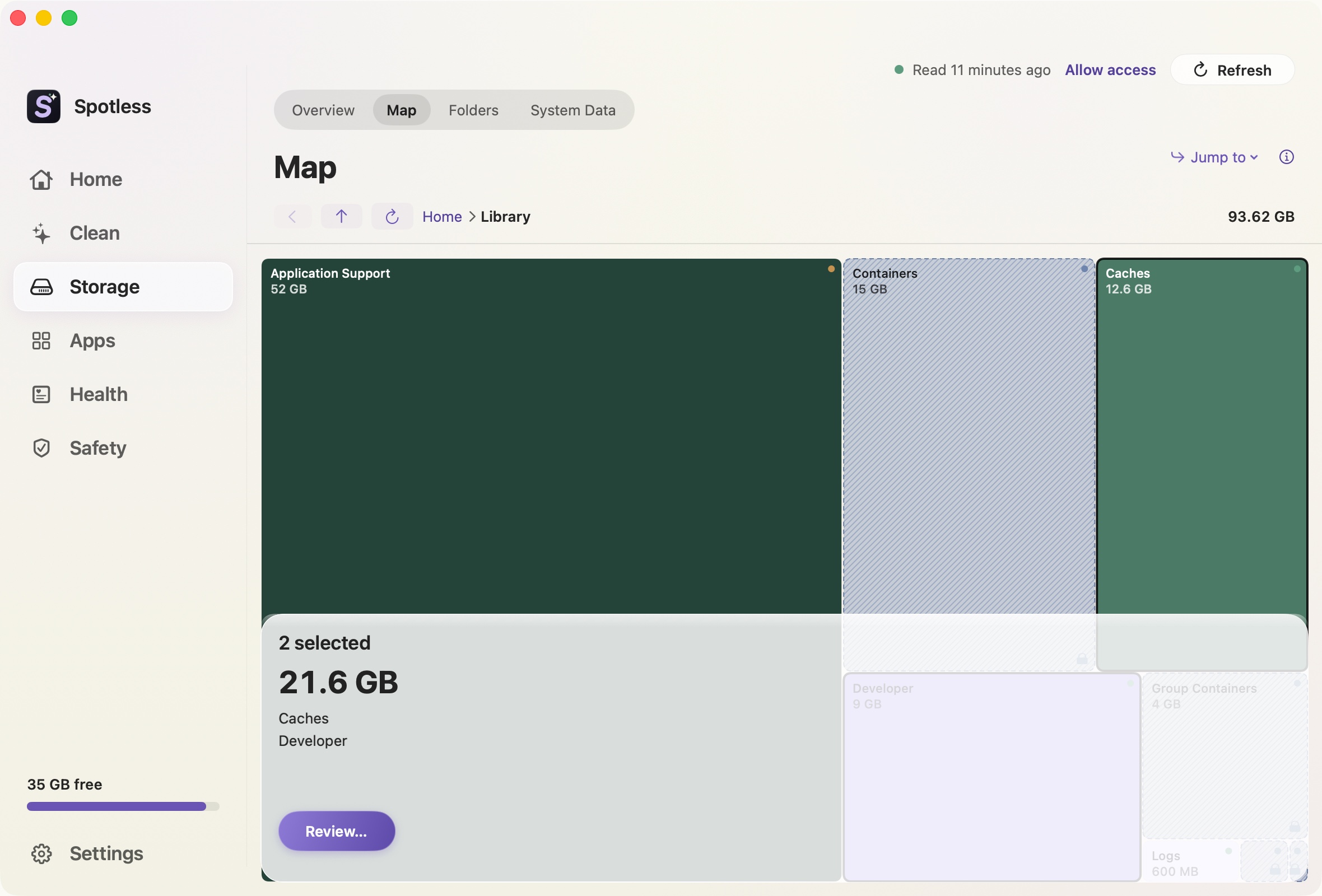
Finder tells you how big one folder is. It does not tell you which of the 40 folders inside it is the reason. The Map draws a folder as a set of blocks, each block's area matching the space it takes, so the culprit is the big one in the corner.
When to use it
Use it when the disk is fuller than you can explain. Start at your home folder, open the biggest block, and keep going until you reach something you recognise. In the screenshot, Application Support inside Library is the answer: 52 GB, more than the next two blocks together.
A click on a folder block opens it. A click on a file block picks it. Cmd-click adds to the pick. The breadcrumb at the top takes you back up.
What it will and will not touch
The Map has no delete button. Pick two or more blocks and the side panel shows a combined size and a Review button, which opens the same review screen every other page uses. You see each item and its size before anything moves. Whatever you confirm goes to the Trash first, and space comes back when you empty it.
Protected places carry a padlock. You can open them and read their size, but you cannot pick them. In the screenshot, Containers and Group Containers are the hatched, padlocked blocks. The sizes there are sample data.
Some areas are not read at all. The inside of the Photos library is one, and that lock cannot be switched off. They are listed under the chart as not read on purpose instead of being drawn. App bundles and other package files draw as a single block and do not open into their parts.
A level draws at most 120 blocks. The rest fold into one hatched cell labelled "smaller items", which cannot be picked. Other drives are listed so you can look around and measure them, but Spotless does not clean them. Use Finder there.
The safety page lists the full set of locks.
The manual way
In Finder, open a folder in list view, choose View, then Show View Options, and tick "Calculate all sizes". Sort by Size. That gives you the same ranking, one folder at a time, with no picture. Get Info (Cmd-I) shows a folder's size too.
In Terminal, this prints the biggest items one level down from your home folder:
du -hd 1 ~ | sort -hr | head -15Run it again on whichever line is biggest, for example du -hd 1 ~/Library | sort -hr | head -15. It is slow on a big Library folder. Without Full Disk Access granted to Terminal it silently skips protected folders, so the total can come out low. du counts disk blocks, while Get Info shows a logical size and the size on disk, so the numbers will not match to the byte.
The manual route works well for one or two questions. The Map is faster when you keep drilling and then want to pick several things to remove in one pass.
Keep going
- How to free up space on your Mac: Where Mac storage usually goes, in the order worth checking, with the exact Terminal and Finder commands to measure each place before you delete.
- How to find large files on your Mac: Find the biggest files on a Mac with Finder, find, du and Spotlight, and why the sizes disagree for sparse files, packages, clones and iCloud placeholders.
- Storage by type: see which kind of file fills your Mac: Spotless groups the files in your home folder by type and age, from app data and developer files to videos, with the biggest files in each group.
- What is System Data on Mac?: Spotless breaks the System Data number into named owners, shows what it cannot attribute, and checks its total against Settings.