
 Spotless
What is System Data on Mac?
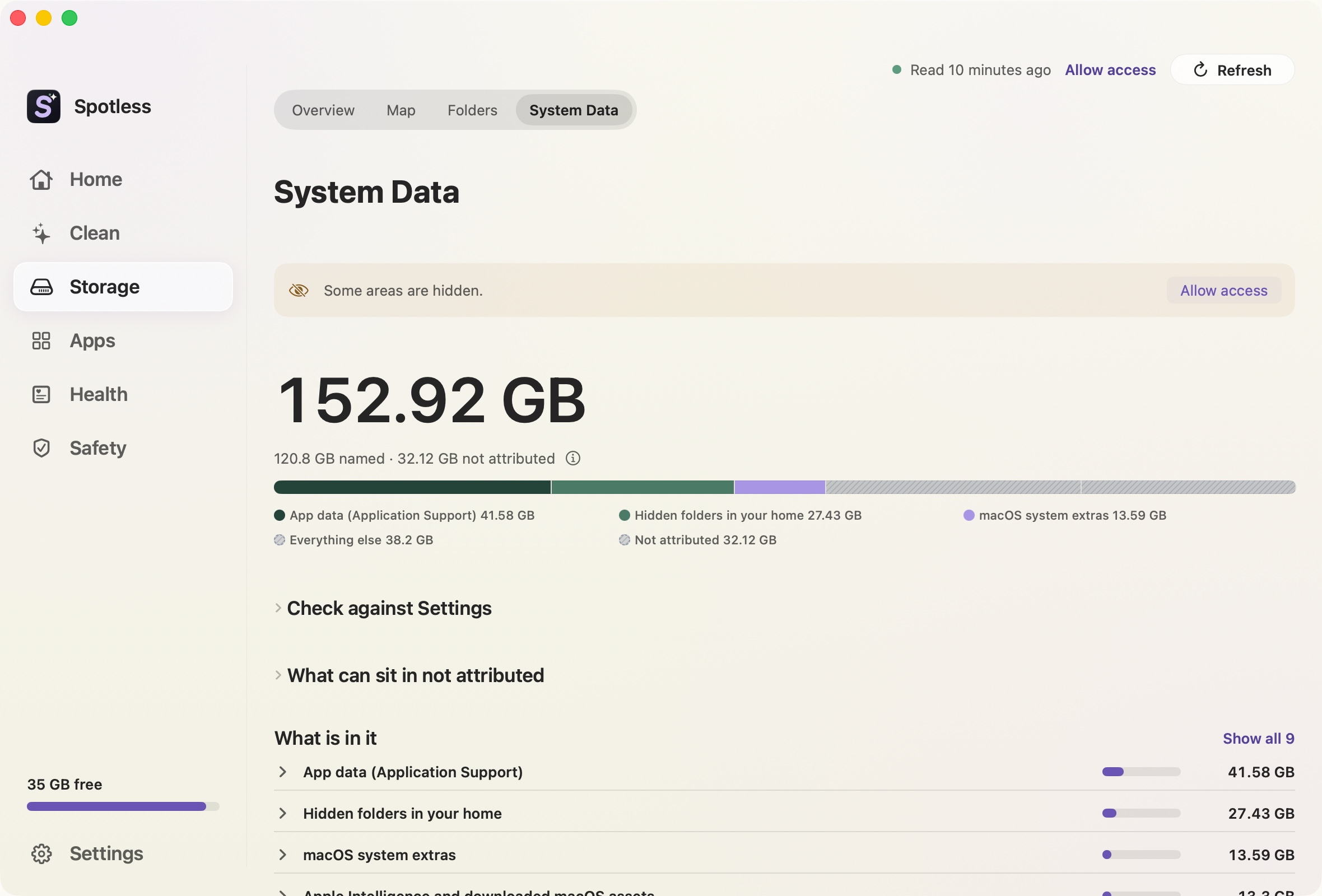
System Data is the grey bar in System Settings, then General, then Storage. It holds everything macOS does not file under Apps, Documents or the other named categories, and on many Macs it is the largest bar on the screen. Settings gives one number and no list. Spotless splits it into owners you can read, and says how much it could not trace.
When to use it
Use it when System Data is huge and you want to know why before deleting anything. The page works from your last scan, so run one first. The big figure is an estimate: what is used on the Data volume, plus swap, minus apps and your own files. A hatched "not attributed" slice is the part Spotless could not name. It is shown instead of hidden.
There is also a box to type in the System Data figure from Settings. Spotless compares it with its own and says whether the gap is rounding, things Settings files under other headings, or places Spotless cannot see.
What it will and will not touch
Most rows send you to the page that owns that cleanup, with the usual review step. Mail, Messages and AI-app chats and history are listed as protected and stay locked. Photos and iCloud Drive are not read unless you allow measuring. Things macOS manages, such as the sleep image, the Spotlight index, swap and the Rosetta cache, have no remove button at all.
Purgeable space is shown but not cleaned. macOS frees it when it needs room.
Local snapshots are the one place on this page that can delete something. The page counts them with tmutil but cannot show their size, because macOS does not report one to apps. "Delete All Snapshots" asks for confirmation and your Mac password. The warning says it cannot be undone, and that without your Time Machine disk connected you lose the ability to go back to those points. macOS removes snapshots itself when it needs room.
If Full Disk Access is off, some areas stay hidden, and the page offers to open the setting. More of the total then lands in not attributed.
The manual way
Settings, then General, then Storage, shows the number and the category bars. For the contents, measure folders yourself. Terminal needs Full Disk Access (System Settings, Privacy & Security) or it will skip protected folders:
du -hd 1 ~/Library | sort -hr | head
tmutil listlocalsnapshots /
diskutil info / | grep -i "container free"
The first line ranks your Library folder, usually the biggest contributor. The second lists local snapshots, and prints only its header when there are none. The third gives free space for the whole container, to set against Settings. ~/Library/Caches, ~/Library/Developer and ~/.cache are the usual large folders.
What the manual route cannot do is add the parts up to the grey bar. Swap, /private and snapshot sizes do not appear in du output at all. That is the gap the page tries to account for.
Keep going
- How to free up space on your Mac: Where Mac storage usually goes, in the order worth checking, with the exact Terminal and Finder commands to measure each place before you delete.
- How to find large files on your Mac: Find the biggest files on a Mac with Finder, find, du and Spotlight, and why the sizes disagree for sparse files, packages, clones and iCloud placeholders.
- See what is filling your Mac with the space map: The Map page in Spotless draws every folder as a block sized by the space it uses, so you can find what fills your Mac and open it.
- Storage by type: see which kind of file fills your Mac: Spotless groups the files in your home folder by type and age, from app data and developer files to videos, with the biggest files in each group.