
 Spotless
Login and background items: see what starts by itself
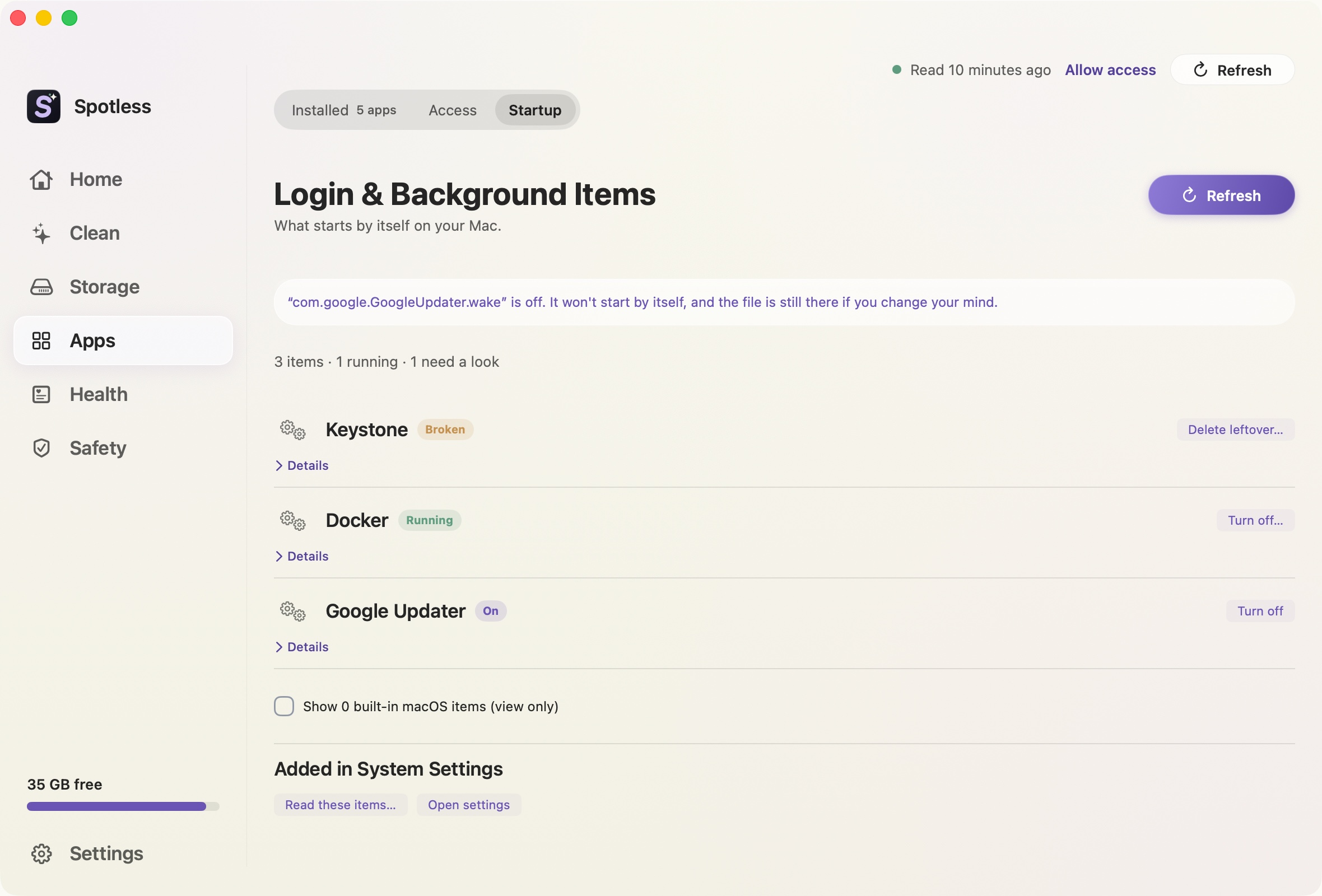
Installers drop small files that tell macOS to start a helper at login, on a timer or whenever another app asks. Updaters, sync tools and Docker do this. Most are fine. Some keep running after the app is gone, and then they point at nothing.
What the page reads
Spotless reads three folders: ~/Library/LaunchAgents (just you), /Library/LaunchAgents (every user) and /Library/LaunchDaemons (the whole Mac, before login). For each file it shows when it starts, whether it is running now with its CPU and memory, which app it belongs to, who signed the program, and whether the program still exists. Built-in macOS items are hidden by default and view-only.
Items that need a look come first. "Broken" means the program is missing or the file is empty. "Unsigned" means nobody signed the program.
Turn off, and delete a leftover
"Turn off" stops the item now and tells launchd not to start it again. The file stays, so "Turn on" reverses it. A system-level item asks for your Mac password first. Apple's items and items added in System Settings cannot be switched here.
"Delete leftover" appears only for your own files whose program is gone or whose app is uninstalled. It goes through the normal review sheet and goes to the Trash.
Turning something off has a cost. The details say what you may lose, such as background updates or syncing. Turn off one thing at a time and see.
Items added in System Settings
Login items you add in System Settings and the newer background items are kept by macOS in a database that only administrators can read. "Read these items" asks for your password once and runs sfltool dumpbtm, which only reads. It lists them as allowed or off. Cancelling changes nothing. You cannot switch them from Spotless; "Open settings" takes you to the right pane.
What it does not cover
It does not list apps in the Dock's "Open at Login" in a toggle list, and it does not measure boot time. Items that run without a plist in those folders will not appear, so for those the Settings list is the reference.
The manual way
Open System Settings, then General, then Login Items & Extensions. Anything allowed there shows a toggle. For launchd files in Terminal, read-only:
ls ~/Library/LaunchAgents /Library/LaunchAgents /Library/LaunchDaemons
launchctl list | grep -v com.apple
launchctl print-disabled gui/$(id -u)
plutil -p ~/Library/LaunchAgents/NAME.plist
To stop one yourself, launchctl bootout gui/$(id -u)/LABEL then launchctl disable gui/$(id -u)/LABEL. That is what Spotless runs for a user item. enable and bootstrap bring it back.
Keep going
- How to uninstall apps and their leftovers on Mac: Dragging an app to the Bin leaves files behind. Where those leftovers are on a Mac, how to find them by bundle ID, and which ones are safe to remove.
- Remove leftovers from deleted apps: Where an app's files stay after you drag it to the Trash, how Spotless finds them, how to select and remove them all at once, and what to keep.
- Uninstall a Mac app and find what it left behind: Spotless shows an app and the files it left in your Library, with how sure it is about each one. Only the app is ticked, and shared data is locked.
- How to free up memory (RAM) on a Mac: How to read Memory Pressure in Activity Monitor, what actually frees memory, why memory cleaner apps do not help, and when you need more RAM instead.