
 Spotless
Uninstall a Mac app and find what it left behind
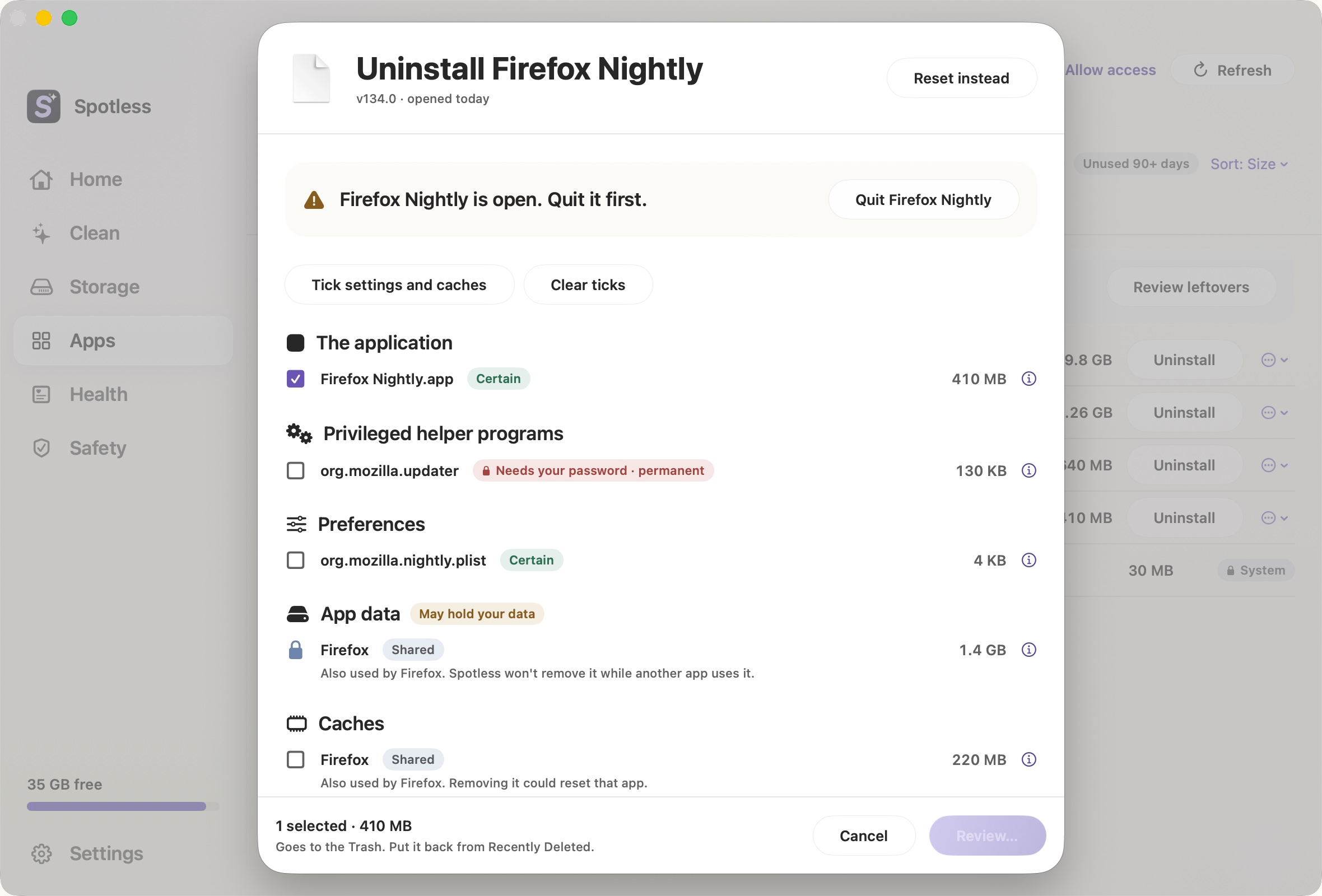
Dragging an app to the Trash removes the app and leaves behind its preferences, caches, logs, saved window state and sometimes a background helper. Those files are small one by one and sizeable across a few dozen old apps. Spotless lists them, says how sure it is that each belongs to the app, and ticks only the app itself.
When to use it
Use it when you are removing an app for good, or clearing out apps you have not opened in months. The list covers /Applications and ~/Applications, and can be filtered to apps unused for 90 days or more. If an app is only misbehaving, Reset instead keeps the app and removes its settings and saved window state, so it opens like new.
You can also run a check for leftovers from apps you already deleted. Nothing is ticked there either.
How safety works
Each file carries a confidence label: Certain, Likely, Possible or Shared, with the evidence behind it, such as a name matching the app's bundle ID. App data may hold your own documents or databases, so it stays unticked until you decide.
If the app is open, Review stays disabled until you quit it. Spotless asks the app to quit and never force-quits.
A folder that another installed app also uses is locked. The screenshot shows this: Firefox Nightly shares its data folder with Firefox, so Spotless will not remove it. Apple's own apps have no Uninstall button, apart from a short list that Apple lets you remove. Keychains, Mail and Photos stay protected, and a file outside the places where apps keep leftovers is refused.
Almost everything goes to the Trash, and the footer says you can put it back. The exception is system-level items in /Library, such as helper tools. They need your password and are removed for good, and the row says so before you confirm.
What it will not do
Apps stored outside /Applications and ~/Applications are not listed. Spotless does not run an app's own uninstaller, which some apps with kernel or system extensions expect you to use. An app with no bundle ID gets only the app itself offered, because nothing can be matched to it.
The manual way
Quit the app, then drag it from /Applications to the Trash. For the leftovers, get the bundle ID first:
mdls -name kMDItemCFBundleIdentifier /Applications/Firefox.appThen search for it:
find ~/Library -maxdepth 3 -iname "*org.mozilla.firefox*" 2>/dev/nullThe places worth checking are ~/Library/Preferences, Application Support, Caches, Containers, Group Containers, Saved Application State, HTTPStorages, WebKit, Logs and LaunchAgents, and /Library/LaunchDaemons and /Library/PrivilegedHelperTools. launchctl list | grep -i name shows a helper that is still loaded.
The weak point is names. Many apps store data under their product name rather than the bundle ID, and some folders are shared with a sibling app. Delete by guesswork and you can reset another app. Homebrew installs have their own route: brew uninstall --cask name, and adding --zap asks Homebrew to remove the files the cask lists.
Keep going
- How to uninstall apps and their leftovers on Mac: Dragging an app to the Bin leaves files behind. Where those leftovers are on a Mac, how to find them by bundle ID, and which ones are safe to remove.
- Remove leftovers from deleted apps: Where an app's files stay after you drag it to the Trash, how Spotless finds them, how to select and remove them all at once, and what to keep.
- Login and background items: see what starts by itself: Spotless lists launch agents and daemons that start on their own, shows what each runs and who made it, and turns them off without deleting anything.
- How a Spotless clean works: Scan, look, choose, review, Trash.