
 Spotless
Keep an eye on free disk space from the menu bar
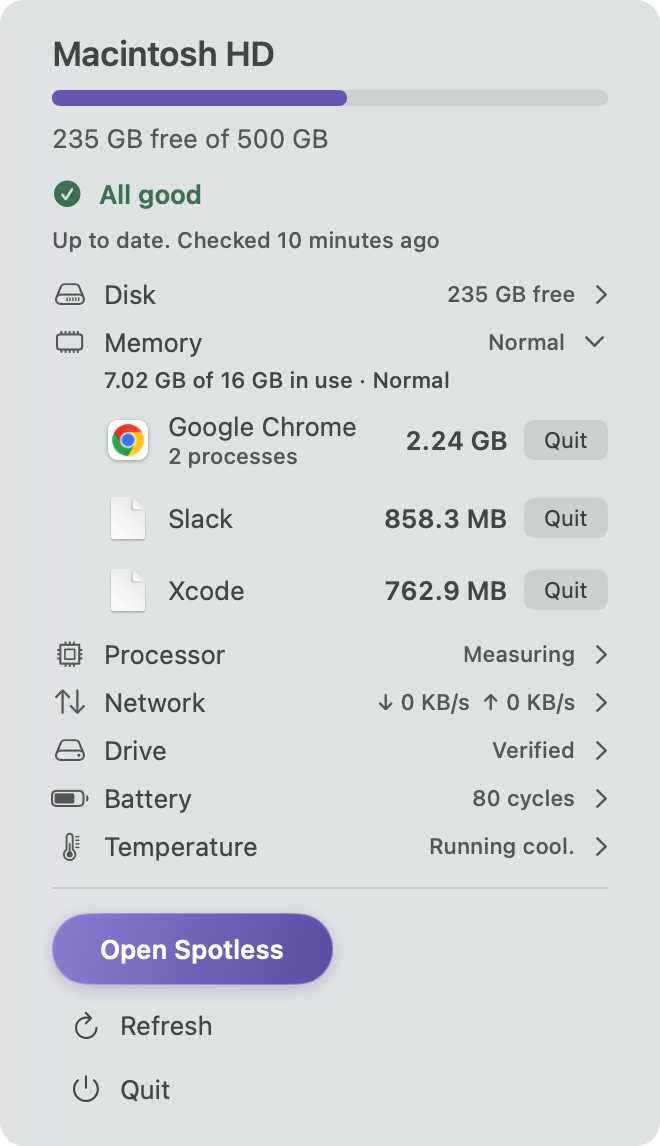
A full disk usually announces itself when a save fails or an update refuses to install. macOS puts the number in System Settings, then General, then Storage, which is three clicks away and not on screen when it matters. Spotless keeps your free space in the menu bar and changes its colour as the disk fills.
What it shows
The menu bar label is the free space on the Mac. Click it and a panel shows disk, memory, processor and network at a glance: free space, memory in use and the biggest memory users, how busy the processor is, and the current download and upload speed. The processor and network readings are taken only while the panel is open. It is on by default and can be switched off in Settings. It exists only while Spotless is running.
The label uses your Mac's own accent colour, or a colour you choose. Settings warns when a chosen colour is hard to read on a light or dark menu bar. Warnings keep their own colours in every mode, so a favourite colour cannot hide one.
When it turns orange or red
Both conditions must hold, so a big disk is not called almost full while it still has room.
- Orange: 80 % used or more, with 100 GB or less free.
- Red: 90 % used or more, with 50 GB or less free.
There is a 1 % margin on the way back out so the label does not flicker. An orange dot can also appear for other reasons, such as memory staying tight. The panel names the reason. If the disk cannot be read, the label shows a dash.
What it will not do
The menu bar item reads numbers and opens windows. It deletes nothing by itself. Review and Empty Trash open the normal review screen first. One button acts after a confirmation: "Empty what Spotless moved" asks before it permanently deletes only the items Spotless had moved to the Trash.
It is not a full system monitor. It does not draw a CPU graph or show network speed.
The manual way
System Settings, then General, then Storage gives the figure. In Finder, View, then Show Status Bar prints "X GB available" at the bottom of any window. That number includes purgeable space that macOS frees on demand, so it can look generous. In Terminal:
df -h /System/Volumes/Data
diskutil info / | grep -i "container free"
memory_pressure | tail -1
df on the Data volume shows the used percentage, and diskutil shows the free space of the whole container. memory_pressure ends with the system-wide free memory percentage. Activity Monitor's Memory tab draws the pressure graph.
macOS has no built-in menu bar item for free disk space, and nothing warns you early by colour. A Shortcuts automation or script can add a notice, but you build and maintain it yourself.
Keep going
- How to free up memory (RAM) on a Mac: How to read Memory Pressure in Activity Monitor, what actually frees memory, why memory cleaner apps do not help, and when you need more RAM instead.
- Memory: what pressure means and what is using your RAM: Spotless shows the memory pressure macOS reports, how RAM splits into app, wired, compressed and cached, and which apps use the most.
- Login and background items: see what starts by itself: Spotless lists launch agents and daemons that start on their own, shows what each runs and who made it, and turns them off without deleting anything.
- How a Spotless clean works: Scan, look, choose, review, Trash.