
 Spotless
Memory: what pressure means and what is using your RAM
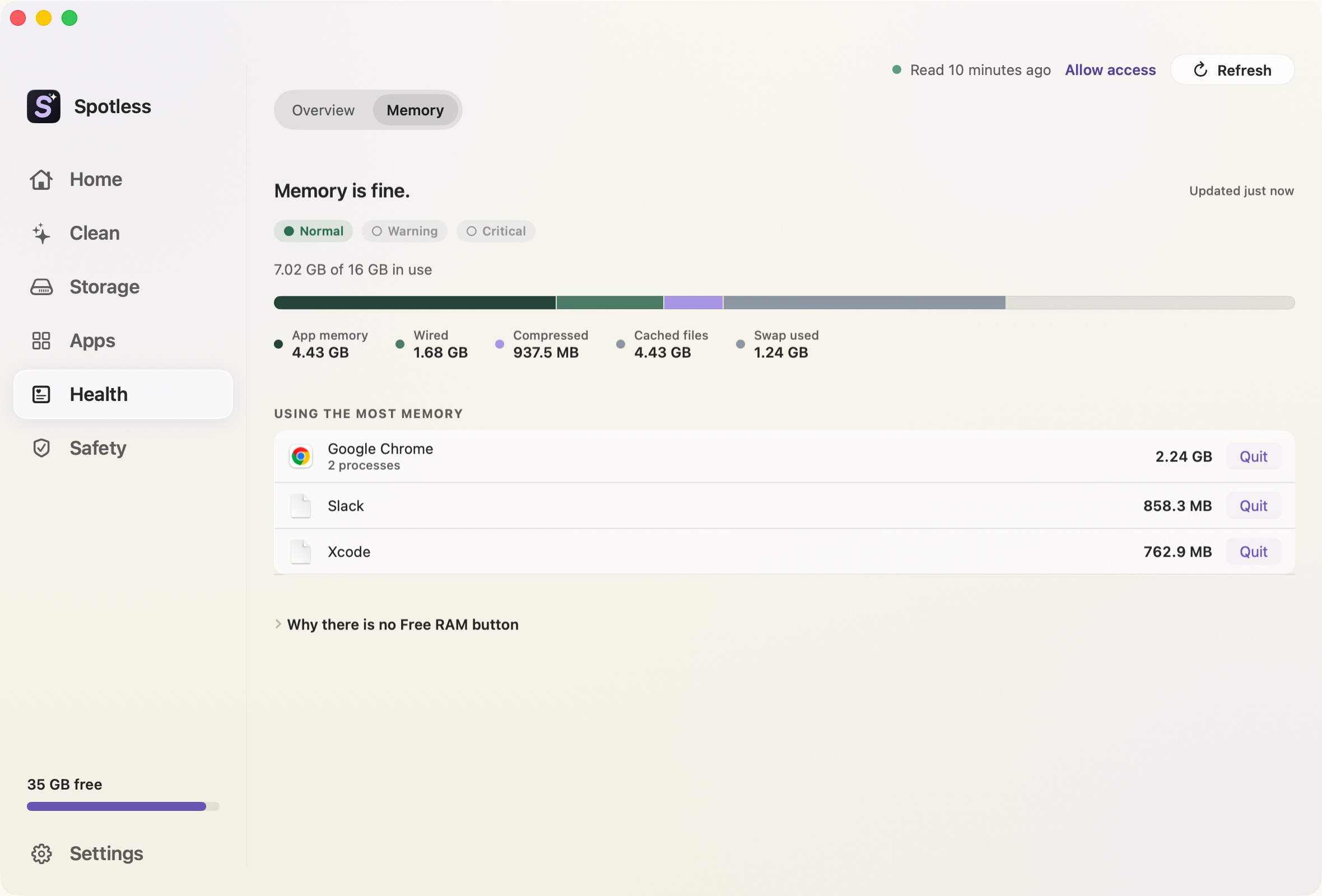
A Mac with 16 GB can show 14 GB "used" and be perfectly healthy. The number that says whether memory is a problem is memory pressure, and Spotless shows that first.
What pressure means
Pressure is the level macOS itself reports: Normal, Warning or Critical. Spotless reads it from the kernel (kern.memorystatus_vm_pressure_level) and does not work it out from the memory numbers. If it cannot read it, the page says so instead of guessing Normal.
- Normal. macOS is not short of memory.
- Warning. macOS is compressing data and may use the disk as extra memory.
- Critical. The Mac is working hard to find room and may feel slow.
The page also says how long memory was tight in the last 7 days, but only while Spotless was running.
The bar and the app list
The bar uses the same terms as Activity Monitor: App memory, Wired (the system, cannot be moved out), Compressed, and Cached files, which macOS hands back as soon as an app wants it. Swap used is shown beside them. Cached files are why "used" looks high on a healthy Mac.
Below it, the apps using the most memory, grouped so a browser with many helpers is one row. "Quit" asks the app to quit normally. If the app refuses, the page says so and your work is not forced closed.
Why there is no Free RAM button
Spotless does not offer one. Spare memory is full of recently used files so apps open faster. Emptying it only slows the next launches. If pressure stays at Warning, quit one big app. That is the whole fix.
What this page will not do: it does not predict when memory will run out, does not read battery health, and does not change anything on its own. A separate Memory item in the menu bar, if you switch it on, shows the same pressure level (see the menu bar page).
The manual way
Activity Monitor, Memory tab: the Memory Pressure graph at the bottom is the same signal. Green is Normal, yellow Warning, red Critical. In Terminal, read-only:
memory_pressure | tail -1
sysctl kern.memorystatus_vm_pressure_level
sysctl vm.swapusage
vm_stat | head -5
The sysctl returns 1 for Normal, 2 for Warning and 4 for Critical. memory_pressure ends with the system-wide free percentage. vm_stat counts pages of 16384 bytes on Apple silicon, so multiply before comparing with GB.
Swap in use is not a fault. It matters when pressure is also Warning or Critical.
Keep going
- How to free up memory (RAM) on a Mac: How to read Memory Pressure in Activity Monitor, what actually frees memory, why memory cleaner apps do not help, and when you need more RAM instead.
- Login and background items: see what starts by itself: Spotless lists launch agents and daemons that start on their own, shows what each runs and who made it, and turns them off without deleting anything.
- How a Spotless clean works: Scan, look, choose, review, Trash.
- Pricing: Every feature for $9, once.