
 Spotless
Clear developer caches and build folders safely
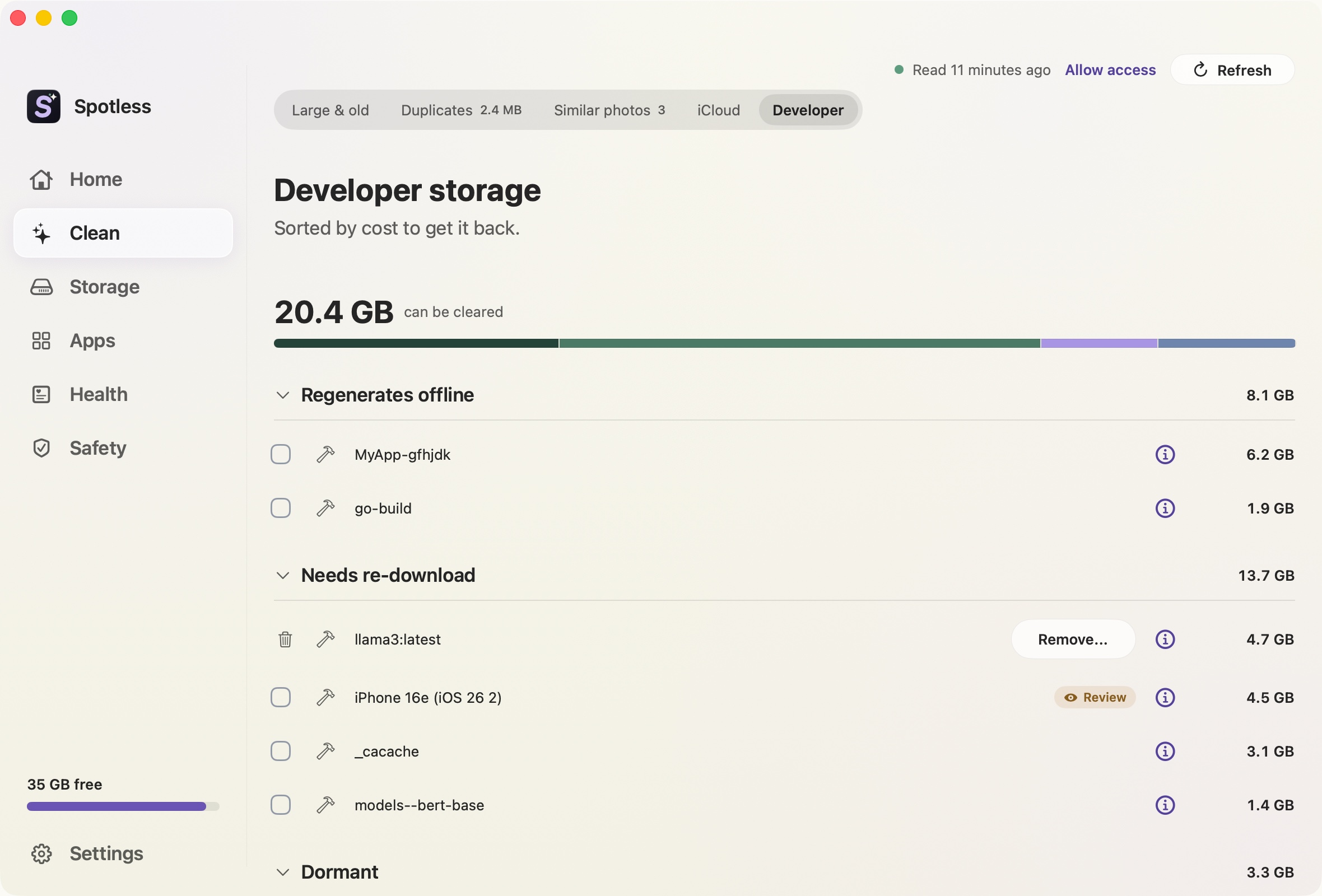
Xcode's DerivedData, a package manager's download cache and a forgotten project's node_modules can add up to tens of gigabytes. Most of it comes back when you need it, at different prices: a slow first build, a re-download, or a lost simulator. The Developer page sorts what your tools store by what it costs to get back.
When to use it
Use it when the disk is tight and you build software. The sections run from cheapest to dearest. Regenerates offline is rebuilt by the tool without a network. Needs re-download costs bandwidth and time. Dormant holds build folders of projects you have not touched. Nothing is ticked after a scan.
How projects are protected
Spotless recognises node_modules, Swift .build, Rust and Maven target, Python venv, CocoaPods Pods and similar build folders, mostly by the project file beside them. A project is locked when:
- it was edited in the last 14 days, or Spotless knows it as a project you work in;
- a process is running with its working folder inside it;
- an editor such as Xcode, VS Code or Cursor is open and the project was touched in the last 30 days;
- for folders of 100 MB or more inside a git repository, there are uncommitted changes, or the folder is tracked by git.
Build folders of a project you are working in stay locked. Idle projects are offered for review, and only ones idle for 90 days or more with every check clear are marked safe. If git or the process list cannot be read, the row falls back to Review. When you confirm, Spotless checks again, and refuses if a program started in the folder after the scan.
What it will not touch
Settings, keys and installed tools, such as ~/.cargo/bin and ~/.m2/settings.xml, are never offered. Items that a tool should manage itself, such as simulator data and installed language runtimes, sit in a collapsed section with the tool's own command. Docker and virtual machine disks are not deleted from this page.
Removal goes to the Trash by default, after the review list. Settings has a "Delete permanently" switch, off by default.
The manual way
Measure first:
du -sh ~/Library/Developer/Xcode/DerivedData ~/.npm ~/.cargo/registry ~/Library/Caches/Homebrew ~/Library/Caches/pip 2>/dev/null
find ~ -maxdepth 5 -name node_modules -type d -prune
Most tools clean their own caches, which is the safest route: brew cleanup, npm cache clean --force, pip cache purge, yarn cache clean, pnpm store prune. With Xcode installed, xcrun simctl delete unavailable removes simulators you can no longer run. DerivedData can be dragged to the Trash in Finder. rm -rf skips the Trash and cannot be undone.
For a project's node_modules, run git -C ~/path/to/project status --porcelain first and check that no dev server is running in it. Those are the checks Spotless does for you. By hand, you also have to remember which projects you still use.
Keep going
- How to clear Xcode DerivedData on Mac: Where Xcode DerivedData lives, how big it gets, the exact commands to clear it safely, and the gotchas with indexes, caches and running builds.
- How to delete iOS Simulators and runtimes in Xcode: Remove old iOS Simulator devices and downloaded runtimes from Xcode, with the commands, the folders involved and what each removal costs.
- How a Spotless clean works: Scan, look, choose, review, Trash.
- Pricing: Every feature for $9, once.